Can You Check iPhone Parts by Serial Number? What a Serial Lookup Really Shows
Short answer: no. The device serial number identifies the iPhone itself, so a serial lookup can confirm the model and Apple warranty or AppleCare coverage, but it can't tell you whether the screen, battery or cameras are original or who made them. To check for replacements, open Settings → General → About → Parts and Service History on the phone. To see the maker of each part, you need the parts' own serials, which are stored in the phone's diagnostic data (a sysdiagnose), not in the device serial.
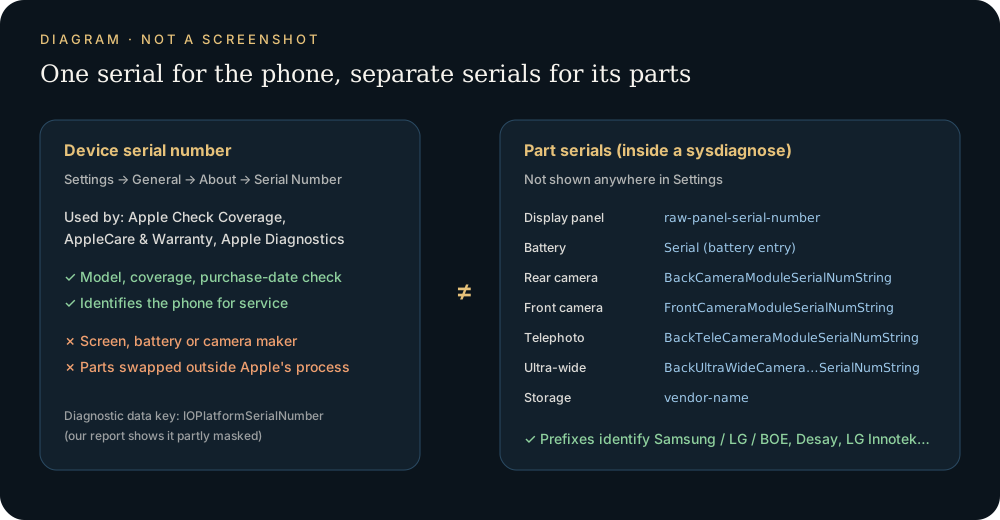
What a serial number lookup actually returns
People search for an "iPhone parts checker by serial number" expecting a parts list. Here is what the real options give you:
| Check | What you enter | What it shows | Shows replaced parts? | Names part makers? |
|---|---|---|---|---|
| Apple Check Coverage | Device serial | Model, warranty / AppleCare coverage, purchase-date status | No | No |
| Settings → General → AppleCare & Warranty | Nothing (on the phone) | Same coverage details for that phone | No | No |
| Settings → General → About → Parts and Service History | Nothing (on the phone) | Genuine / Used / Unknown / Unverified label per covered part | Yes (iOS 15.2+, covered models) | No |
| Apple Diagnostics / diagnostics mode | Device serial + phone in diagnostics mode | Hardware tests (display, cameras, Face ID, audio) | Indirectly | No |
| Paid "GSX report" sites | Serial or IMEI | Unofficial service records | Only repairs logged by Apple's network | No |
| Sysdiagnose + our lookup | The diagnostic archive | Vendor and serial of each part | Indirectly (compare with Settings) | Yes |
Apple's own page on checking your coverage describes the serial lookup as a way to see whether a device is covered and what repairs and support are included. Nothing about components.
Apple Diagnostics for Self Service Repair, launched in the US in December 2023 according to Apple's newsroom, does ask for the serial. But the serial is only there to pair the session with the phone. The tests run on the phone itself, in diagnostics mode.
Paid sites selling "GSX checks" are not Apple services. Even taken at face value, they can only reflect repairs that went through Apple's service system. A screen swapped at an independent shop with a non-Apple panel leaves no record there.
Why the serial number can't identify parts
There are three reasons.
- It describes the phone, not the components. Apple's support page on finding your serial number or IMEI says you use these numbers "to identify your device when you contact Apple for support."
- New serials carry no information at all. In 2021 Apple began moving to randomized serials of 8 to 14 characters, starting at 10. The purple iPhone 12 was the first confirmed example, MacRumors reported. The older 12-character format encoded the factory location, the year and week of manufacture, and a model/color/capacity code. Even that never listed suppliers.
- Parts can change after the phone ships. The serial stays the same through every repair. A lookup keyed on it can't know what a third-party technician installed last month.
The same logic applies to the IMEI (it identifies the cellular radio) and to the model or part number in Settings → General → About, like MWLN2LL/A. Part number decoders can tell you the region and configuration. They can't tell you which screen is inside.
Where part serials actually live
Each major component reports its own serial to iOS. A sysdiagnose captures those values in its I/O registry files. These are the keys our lookup reads in api/parse.php, and the labels it shows:
| Part | Key in the sysdiagnose | Label in our report |
|---|---|---|
| Phone | IOPlatformSerialNumber |
Serial (partly masked) |
| Display | raw-panel-serial-number |
Vendor / model, Display serial |
| Battery | Serial (battery entry) |
Battery vendor, Battery serial |
| Rear camera | BackCameraModuleSerialNumString |
Rear camera vendor, Rear camera serial |
| Front camera | FrontCameraModuleSerialNumString |
Front camera vendor, Front camera serial |
| Telephoto | BackTeleCameraModuleSerialNumString |
Telephoto vendor, Telephoto serial |
| Ultra-wide | BackUltraWideCameraModuleSerialNumString |
Ultra-wide vendor, Ultra-wide serial |
| Storage | vendor-name |
Storage vendor |
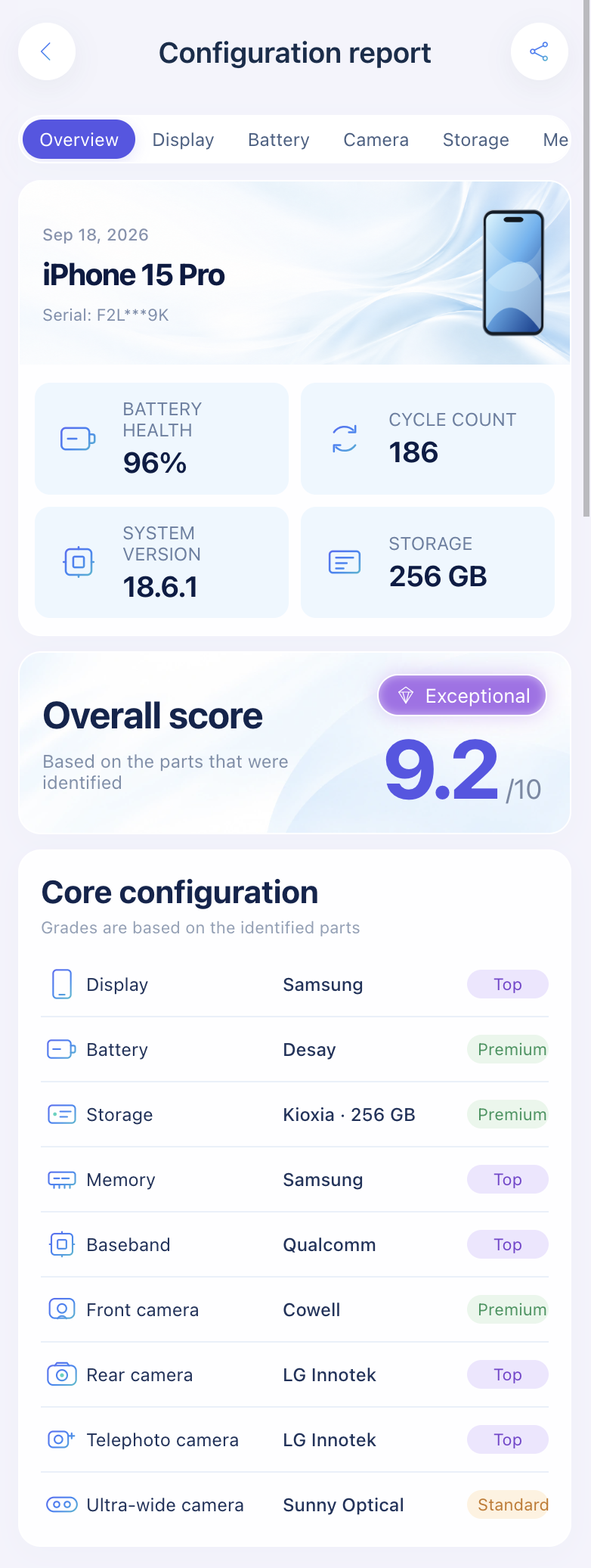
The vendor is decoded from each serial's prefix. For example, the first three characters of the panel serial separate Samsung, LG and BOE (details in Who made my iPhone screen?). Storage is graded on the server: Samsung and Kioxia count as top tier, while SK Hynix, SanDisk/Western Digital and Micron count as mainstream. If a prefix isn't recognized, the report shows Unknown rather than guessing.
A four-step check that uses the serial correctly
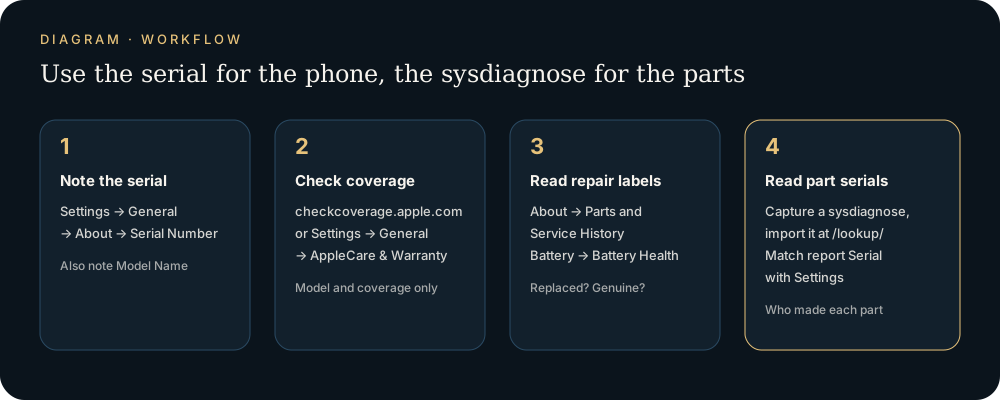
- Note the serial and model. Go to Settings → General → About and write down Serial Number and Model Name.
- Check coverage. Enter the serial at checkcoverage.apple.com, or open Settings → General → AppleCare & Warranty. A model that doesn't match what the seller advertised is a red flag on its own.
- Read the repair labels. In the same About screen, look for Parts and Service History. Apple says it appears only after a repair, needs iOS 15.2 or later, and shows only the most recent service for each part (Apple Support). Then check Settings → Battery → Battery Health (on some models, Battery Health & Charging). What each label means: Genuine, Used and Unknown explained.
- Read the part serials. Capture a sysdiagnose and import it at /lookup/. Make sure the visible characters of the masked Serial at the top of the report match the serial from step 1. That confirms the archive came from this phone and not a different one.
When the serial still matters
The serial isn't useless for a parts check. It's just the wrong tool for naming parts. It ties every other check to one physical phone. It's what Apple and repair providers use to pull the device's coverage. And it's the cheapest way to catch a mismatched model before you go further. For a full comparison of every method, see How to check if iPhone parts are original.
FAQ
Can I check iPhone parts by IMEI instead?
No. The IMEI identifies the phone on cellular networks. Like the serial, it contains nothing about the display, battery or cameras installed now.
Do "GSX check" sites show original parts?
They are unofficial services, not Apple tools. At most they reflect repairs logged through Apple's service network, so a third-party repair won't show up. None of them names the panel, battery or camera supplier.
Is the serial printed on the screen or battery the same as the iPhone serial?
No. Each part has its own serial. The display, battery and camera module serials are separate values, and they're what identify the supplier.
Can a serial lookup tell me if my iPhone is refurbished?
It can confirm the model and coverage. For repairs, use Parts and Service History on the phone itself.
Do I need the full serial to use the lookup tool?
No. The tool reads everything from the sysdiagnose archive and shows the device serial masked in the report.
Sources: Apple Support: Parts and Service History, Find the serial number or IMEI, Warranty and AppleCare coverage, Diagnostics mode. Apple Newsroom: Self Service Repair and Diagnostics (2023). MacRumors: randomized serial numbers (2021).
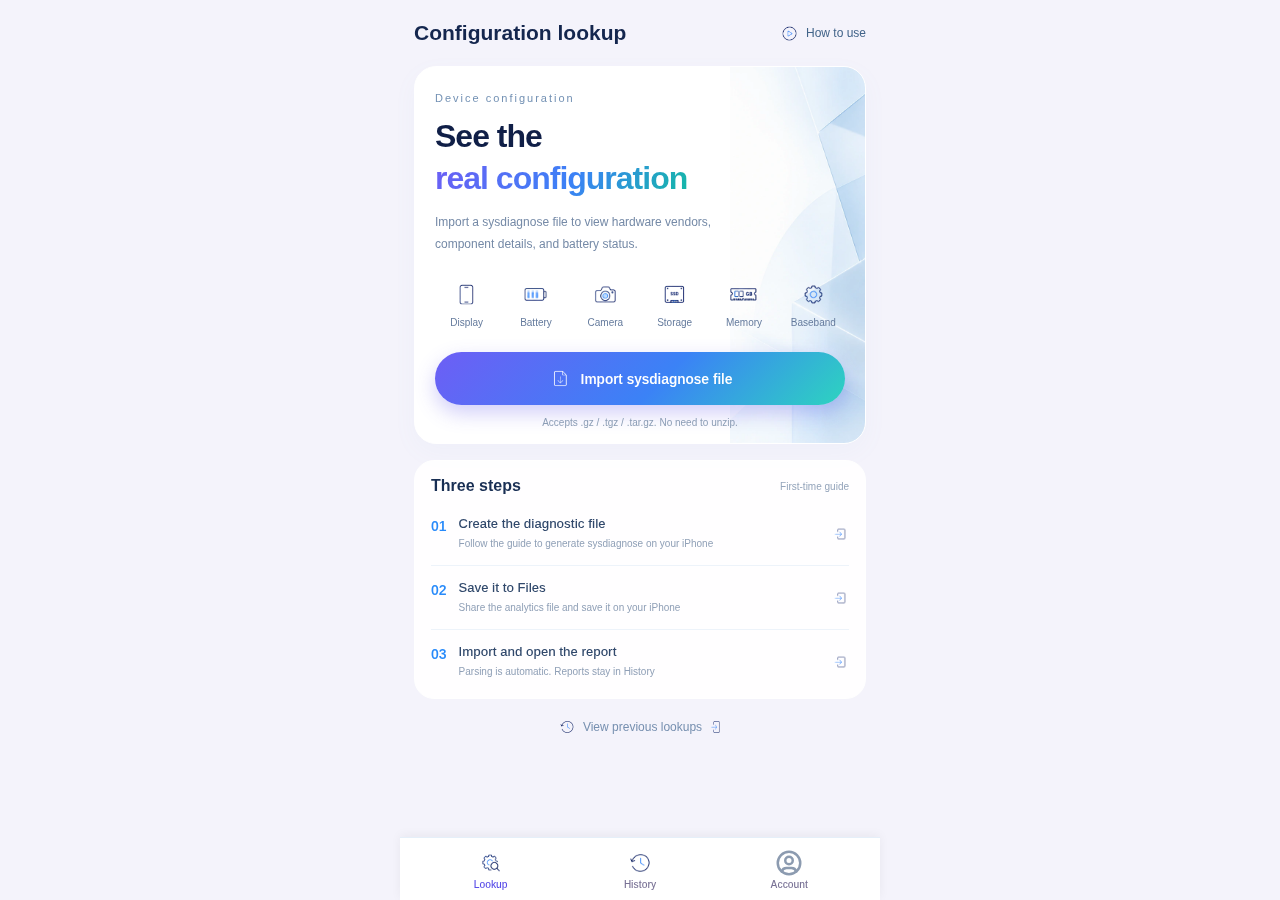
Import a sysdiagnose file to see the display, battery, camera, storage, memory and baseband makers in one report. Lookups use a paid quota.
Open the lookup tool