How to Find Your iPhone IMEI Number (Even Without the Phone)
Short answer: If you have the iPhone, open Settings → General → About and scroll to IMEI, or open the Phone app and dial *#06#. If the phone is lost, broken or locked, sign in at account.apple.com, open Devices and select the iPhone, or tap your name in Settings on another iPhone or iPad signed in to the same Apple Account. The barcode label on the original box also carries the IMEI. Apple lists all of these in Find the serial number or IMEI.
What the IMEI is (and why you need it)
The IMEI (International Mobile Equipment Identity) is a 15-digit number that identifies one cellular device on mobile networks. It isn't tied to your SIM card or your phone number. Move a SIM to another phone and the IMEI stays with the hardware.
You usually need it when you:
- report a lost or stolen iPhone to your carrier or the police,
- ask a carrier to unlock the phone or check whether it will work on their network,
- run a blocklist check before you buy or sell a used iPhone,
- fill in an insurance claim or a support form.
A few related numbers sit next to it in Settings. The MEID is the first 14 digits of the IMEI (Apple says so in the same support article), used by older CDMA networks. The EID identifies the eSIM chip, and the ICCID belongs to the SIM card or eSIM profile, not to the phone. The serial number is Apple's own identifier. If you mix these up, our guide to checking IMEI and serial before buying explains which number each check needs.
Method 1: Settings (the fastest way)
Apple's steps:
- Open Settings and tap General.
- Tap About.
- Scroll down to find the IMEI (and EID, MEID and ICCID).
- Touch and hold the number to copy it, then paste it into a form or a note.
Copying avoids typos. One wrong digit turns a valid IMEI into a number that no checker or carrier will recognise.
If your iPhone supports Dual SIM (one physical SIM plus eSIM, or two eSIMs), About shows two IMEI numbers, one for each line. Both belong to the same phone. When a carrier asks for "the IMEI", give the one for the line you're activating, or give both if you're not sure.
Method 2: Dial *#06#
Open the Phone app, go to the keypad and dial *#06#. The IMEI pops up on screen straight away, no call is placed. This is a standard code across mobile phones, not an Apple-only trick, so it also works on Android phones you may be comparing against.
It's the best way to confirm a number someone sent you. Settings and *#06# both read the IMEI from the phone itself, while a screenshot or a box label can come from a different phone.
Method 3: The "Hello" screen on an erased iPhone
A phone that has just been erased, or a new one that was never set up, shows "Hello" in many languages. Apple's steps:
- Turn the iPhone on and wait for the "Hello" screen.
- Tap the Info button (ⓘ) in the bottom-right corner.
You'll see the serial number, IMEI and EID without signing in or finishing setup. That's handy when you're selling a phone you've already reset, or buying one the seller has wiped.
Method 4: Look on the SIM tray or the back of the phone
Older models print or engrave the IMEI on the hardware. According to Apple:
| Model | Where the IMEI is printed |
|---|---|
| iPhone 6s through iPhone 13 (incl. 13 Pro / Pro Max), iPhone SE 2nd and 3rd gen, iPhone XR, XS, X, 8, 7 | On the SIM tray |
| iPhone 5, 5c, 5s, 6, 6 Plus, iPhone SE 1st gen | Engraved on the back |
| iPhone 3G, 3GS, 4 (GSM), 4s | On the SIM tray (serial number too) |
| Original iPhone | Engraved on the back |
| iPhone 14 and later | No IMEI engraving — use Settings, *#06#, the box or your Apple Account |
To read a SIM tray, push a SIM-eject tool or a straightened paper clip into the small hole beside the tray. The digits are tiny, so a phone camera zoom helps.
Keep in mind that a SIM tray can be swapped between phones. If the tray number and Settings disagree, trust Settings and *#06#. US iPhone 14 and later models are eSIM-only with no tray at all, so there's nothing to check there.
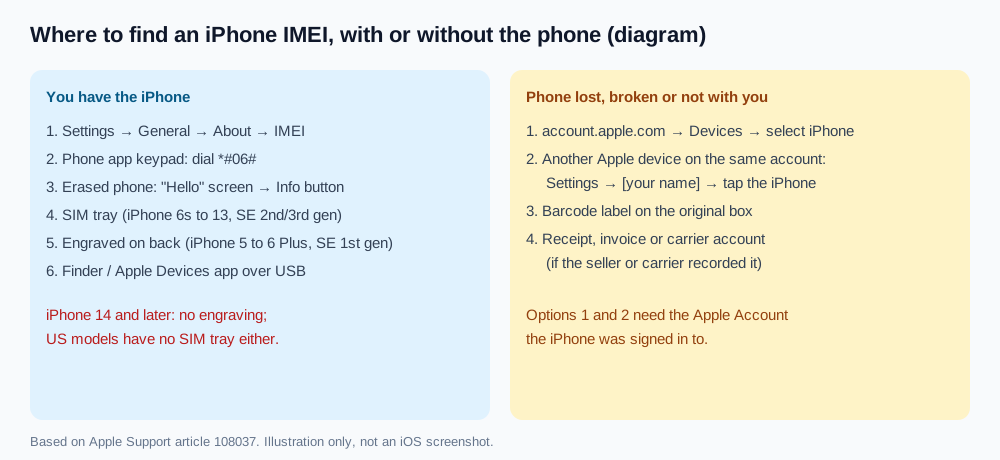
Method 5: Finder on a Mac, or the Apple Devices app on Windows
If the screen is cracked but the phone still connects over USB:
- Connect the iPhone to your computer with a cable.
- On a Mac with macOS Catalina or later, open Finder and select the iPhone in the sidebar. On a PC, open the Apple Devices app (or iTunes). Older Macs use iTunes.
- In the General tab, click the text under the device name. Each click cycles through the details. For iPhone, Apple says to click Phone Number (or the model) to reveal the EID, IMEI/MEID and ICCID.
You may need to unlock the phone and tap Trust the first time it connects to that computer.
How to find your IMEI without the phone
This is where most people get stuck: the iPhone is lost, stolen, dead, or at a repair shop. Apple offers three routes that don't need the device in your hand.
Your Apple Account on the web
- Go to account.apple.com in any browser.
- Sign in with the Apple Account that was used on the iPhone.
- Open Devices and select the iPhone. The serial number, EID and IMEI/MEID are listed there.
This works from any computer or a friend's phone. It only lists devices that were signed in to that account.
Another iPhone, iPad or Mac on the same Apple Account
On another device running iOS 10.3 or later that's signed in to the same Apple Account:
- Open Settings and tap [your name] at the top.
- Scroll down to the list of devices.
- Tap the missing iPhone to see its details, including the IMEI.
The original box
The barcode label on the back of the retail box lists the serial number, EID and IMEI/MEID. If you still have the box, take a photo of the label now and store it somewhere safe. It's the only way to recover the number if the phone is gone and it was never signed in to an Apple Account.
Receipts and carrier records
Apple doesn't list these, but they're worth checking. If you bought the phone from a carrier or on a payment plan, the IMEI is often recorded on your account or invoice. Some retailers print it on the receipt. Ask the carrier's support team if you can't find it online; they'll need to verify your identity first.
How to tell if an IMEI is valid
An IMEI has exactly 15 digits. The last digit is a check digit worked out from the first 14 using the Luhn formula, the same check used for card numbers. A number with the wrong length, or one that a blocklist checker rejects as invalid, was mistyped or made up.
The first 8 digits are the Type Allocation Code (TAC), which the GSMA assigns to a specific device model. Two iPhones of the same model and variant share a TAC, so the TAC alone can't identify your phone, but a TAC that points to a different model is a strong sign that the number doesn't belong to the phone in front of you.
What to do once you have the IMEI
- Lost or stolen: mark the iPhone as lost in Find My, then report it to the police and your carrier. Apple's How to find your lost iPhone or iPad walks through the steps; carriers and police typically ask for the IMEI or serial number, both of which you can find without the device.
- Buying or selling used: run the IMEI through a blocklist checker such as CTIA's Stolen Phone Checker (US), and make sure the number on screen, tray and box all match. Our 15-point used iPhone checklist covers the rest.
- Unlocking: your carrier will ask for the IMEI. You can see the current status in Settings → General → About → Carrier Lock.
- Warranty: Apple's Check Coverage page uses the serial number, which sits right above the IMEI in About.
What the IMEI can't tell you
The IMEI identifies the phone on cellular networks. It says nothing about what's inside. A phone with a clean IMEI can still have a replaced screen, a battery from an unknown supplier, or a swapped camera module. Paid "full IMEI reports" can't see inside the phone either, as we explain in our used iPhone checker comparison.
For the parts, check Settings → General → About → Parts and Service History (see what Genuine and Unknown Part messages mean). To find out who actually made each component, the iPhone's own sysdiagnose archive records part identifiers for the display, battery, cameras, storage and modem. A serial number lookup won't show these.
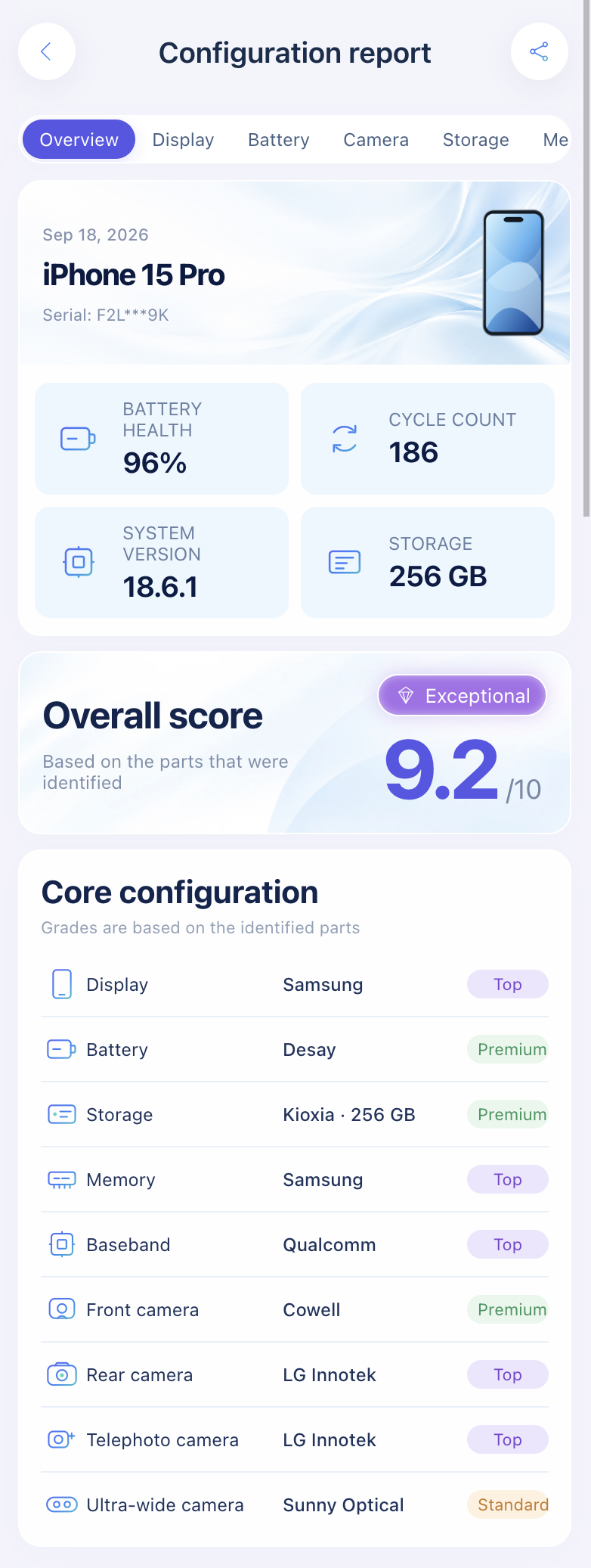
Import a sysdiagnose to see who made the display, battery, cameras, storage, memory and modem in one report.
Open the lookup toolWant the full picture of a phone's parts? Start with how to check if iPhone parts are original.
FAQ
Can I find my iPhone IMEI if the phone is turned off or lost?
Yes. Sign in at account.apple.com and open Devices, or tap your name in Settings on another device signed in to the same Apple Account. The original box label also has it.
Does Find My show the IMEI?
Apple's support article doesn't list Find My as a place to see the IMEI. Use account.apple.com or another signed-in device instead; Find My is for locating, locking and erasing the phone.
Why does my iPhone show two IMEI numbers?
iPhones that support Dual SIM have one IMEI per line. Both identify the same phone.
Is the IMEI the same as the serial number?
No. The serial number is Apple's identifier, used for warranty and repairs. The IMEI identifies the phone on cellular networks. Both appear in Settings → General → About.
Can someone misuse my IMEI if I share it?
Sharing it with a buyer, carrier or insurer is normal. Avoid posting it publicly, since a cloned or misreported IMEI can cause blocking headaches.
Does the IMEI change after a repair?
The IMEI belongs to the logic board. A screen, battery or camera repair doesn't change it. If the IMEI in Settings differs from the box, the logic board or the box isn't original to that phone.
Sources: Apple Support: Find the serial number, EID, or IMEI, How to find your lost iPhone or iPad, If you want to buy a preowned iPhone; CTIA Stolen Phone Checker.
Import a sysdiagnose file to see the display, battery, camera, storage, memory and baseband makers in one report. Lookups use a paid quota.
Open the lookup tool