Used iPhone Checklist: 15 Things to Check Before You Buy
Short answer: Check ownership first and walk away if the phone shows iPhone Locked to Owner or asks for the previous owner's Apple Account. Then confirm the IMEI and model match the listing, read Battery Health and Parts and Service History, and test every function. Settings can only tell you a part was replaced. To see who actually made the screen, battery or cameras, finish with a sysdiagnose in our lookup.
Most of the steps below come from Apple's own guide, If you want to buy a preowned iPhone. The last step covers what that guide doesn't.
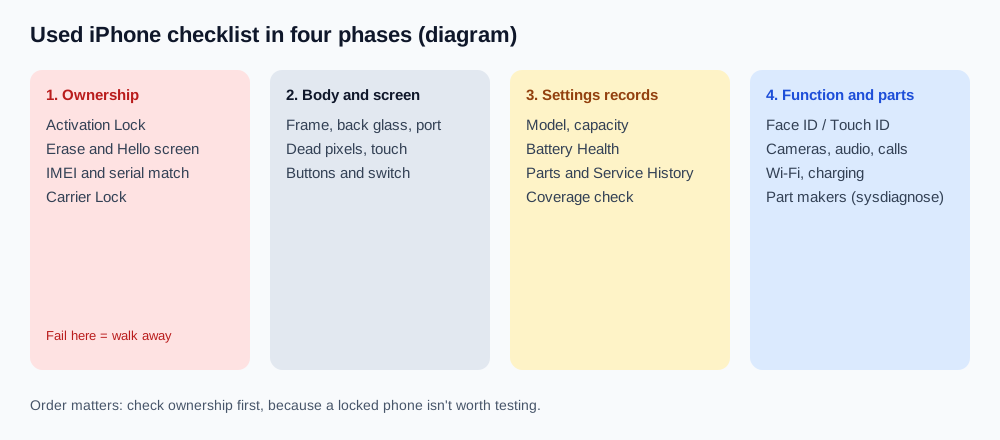
The 15-point used iPhone checklist
| # | Check | Where | Red flag |
|---|---|---|---|
| 1 | Activation Lock | Turn on or wake the phone | iPhone Locked to Owner |
| 2 | Erased and set up | Seller erases it, you reach Hello | Setup asks for the seller's Apple Account |
| 3 | IMEI and serial | Dial *#06#, Settings → General → About, box |
Numbers don't match |
| 4 | Model and capacity | Settings → General → About | Differs from the listing |
| 5 | Carrier Lock | Settings → General → About → Carrier Lock | A carrier name instead of No SIM restrictions |
| 6 | Body | Frame, back glass, camera lenses, port | Dents, lifted glass, corrosion, debris |
| 7 | Screen | White and black pages, drag an icon edge to edge | Dead pixels, tint, dead touch zones |
| 8 | Buttons | Volume, side button, switch or Action button | No on-screen response |
| 9 | Battery Health | Settings → Battery → Battery Health (iPhone 15+) or Battery Health & Charging | Service message, no capacity shown |
| 10 | Parts and Service History | Settings → General → About | Unknown, Unverified or undisclosed Used |
| 11 | Face ID / Touch ID | Set up a new face or finger | Setup fails |
| 12 | Cameras | Every rear lens plus front, photo and video | Blur, spots, shaking, failed focus |
| 13 | Audio and calls | Voice memo, speaker, a real call with your SIM | Muffled mic, no service |
| 14 | Wi-Fi, Bluetooth, charging | Join a network, charge with your own cable | Drops, won't charge, heat |
| 15 | Part makers | Sysdiagnose + lookup | A maker that doesn't fit the model, or a missing part ID |
Ownership checks (1–5): do these first
1. Activation Lock. On iOS 15 and later, a phone still tied to someone's Apple Account shows iPhone Locked to Owner when you turn it on. Apple is blunt: don't take ownership of a device with Activation Lock on.
2. Erase and reach Hello. If you see the seller's Lock Screen or Home Screen, the phone hasn't been erased. Ask them to sign out of their Apple Account, then go to Settings → General → Transfer or Reset iPhone → Erase All Content and Settings. If setup then asks for the previous owner's Apple Account, it's still linked. It's ready once you reach Hello and get past activation.
3. IMEI and serial number. Dial *#06# and compare the IMEI with Settings → General → About, the SIM tray on models that have one, and the box if there is one. A mismatch means something belongs to another phone. Our serial number guide explains what those numbers can and can't reveal.
4–5. Model, capacity and Carrier Lock. In About, check Model Name and Capacity against the listing; tapping Model Number shows the A-number, which on older models also tells you the modem. Apple says No SIM restrictions next to Carrier Lock means the phone is unlocked.
Body, screen and buttons (6–8)
Take the case off and look for dents, cracked back glass or lens covers, and debris in the port, as Apple's guide suggests. On a white page and a black one, look for dead pixels or tint, then drag an icon across the whole screen to find dead touch zones. Every button should show an on-screen response, and the side button should lock the phone. For the signs of a replacement panel, see Is my iPhone screen original?
Records in Settings (9–10)
9. Battery Health. On iPhone 15 and later, go to Settings → Battery → Battery Health. With iOS 17.4 or later it shows maximum capacity, cycle count, manufacture date and first use (Apple Support). On iPhone 14 and earlier, it's Battery Health & Charging. Apple says iPhone 14 and earlier batteries are designed to keep 80% of capacity at 500 full cycles, and iPhone 15 and later at 1,000. Apple notes health information isn't shown for unknown or nongenuine batteries. More in original vs aftermarket iPhone batteries.
10. Parts and Service History. With iOS 15.2 and later, a repaired iPhone shows this section in Settings → General → About (Apple Support). Each part is labeled:
| Label | Meaning (per Apple) |
|---|---|
| Genuine | Repaired with genuine Apple parts and processes |
| Used | A genuine part that was already used in another iPhone |
| Unknown | Nongenuine, not working as expected, not verified, or modified |
| Unverified | The logic board came from another iPhone; features like Apple Pay may be affected |
No section usually means no recorded repair. It only exists on iPhone XR, XS and SE (2nd generation) and later, and only the latest service of each part appears. Our guide to the Genuine and Unknown messages goes deeper. Also enter the serial at checkcoverage.apple.com to see the warranty and any AppleCare.
Function tests (11–14)
Set up a new face or fingerprint yourself rather than trusting the seller's unlock; Apple says Face ID and Touch ID won't unlock the phone until a replaced part is calibrated. Shoot photos and a short video with every lens, record a voice memo, and make a call with your own SIM or eSIM. Join Wi-Fi, pair Bluetooth, and charge with your own cable. If you walk away, forget your Wi-Fi network first.
Step 15: check who made the parts
Settings tells you whether a part was swapped, not which company made the part now inside, and it shows nothing on models older than the iPhone XR. A sysdiagnose holds the display, battery and camera module serials plus the storage, memory and modem IDs.
- Capture a sysdiagnose by briefly pressing both volume buttons and the side button together, then wait about 10 minutes. The full steps are in how to get a sysdiagnose file.
- Find the newest
sysdiagnose_file under Settings → Privacy & Security → Analytics & Improvements → Analytics Data. - Import it at /lookup/ in Safari. The archive is unpacked in your browser, and only the configuration fields are sent.
The report names each maker, including the storage chip. If the display row shows a maker you wouldn't expect for that model, or a part ID is missing, ask the seller about the repair before paying.
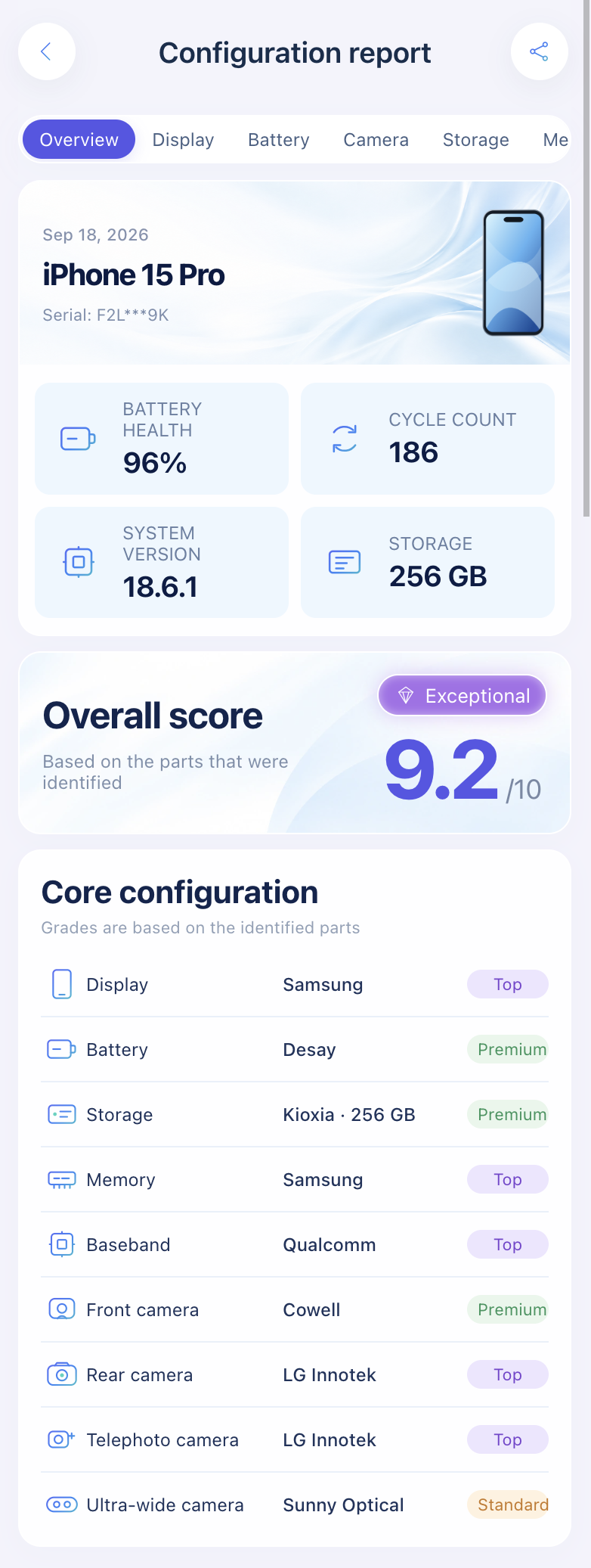
Import a sysdiagnose to see who made the display, battery, cameras, storage, memory and modem in one report.
Open the lookup toolFor the full picture of repair checks, see how to check if iPhone parts are original.
FAQ
What's the most important thing to check on a used iPhone?
Activation Lock. A phone locked to someone else's Apple Account can't be set up, so check it before anything else.
What battery health is acceptable on a used iPhone?
Apple sets no cutoff for buyers, but a battery near 80% capacity is close to Apple's design limit and will likely need replacing soon. Price that in.
Is a replaced part a reason not to buy?
Not always. A Genuine repair is fine for most buyers; an Unknown part or an undisclosed repair is worth a lower price or a pass.
Does an IMEI check show replaced parts?
No. IMEI and serial lookups identify the phone, not its parts. Parts and Service History and a sysdiagnose do.
Sources: Apple Support: If you want to buy a preowned iPhone, Activation Lock for iPhone and iPad, iPhone Parts and Service History, About the battery and performance of iPhone 11 and later, About genuine iPhone batteries.
Import a sysdiagnose file to see the display, battery, camera, storage, memory and baseband makers in one report. Lookups use a paid quota.
Open the lookup tool